How to Set Up iPhone Parental Controls in 2026: The Ultimate Step-by-Step Safety Guide Every Parent Needs
Last Updated: June 2026 | iOS 26 Compatible | Verified Against Apple Support Documentation
Your child’s iPhone is the most powerful device they will ever hold in their hands at age 10. It can teach them, entertain them, connect them to the world, and expose them to things no parent wants to think about. The good news is that Apple has built one of the most complete parental control systems available on any consumer device, and it costs absolutely nothing extra to use.
This guide covers every setting, every step, and every tool available in iOS 26. Whether your child just got their first iPhone or you are finally sitting down to lock things down properly, this is the only guide you need.
What Are iPhone Parental Controls?
iPhone parental controls are built-in digital safety tools that let parents and guardians decide how, when, and what their children access on an iPhone or iPad. Apple packages all of these tools inside a system called Screen Time, which is available on every device running iOS 12 or later, including all current iOS 26 devices.
These controls are not third-party add-ons. They are native to the operating system, which means they are harder for children to bypass, more reliable than external apps, and completely free. According to the American Psychological Association, children who experience unmonitored social media and screen use face measurably higher risks of anxiety, depression, and sleep disruption. Parental controls are not about distrust. They are about building a safe digital environment while children are still developing judgment.
A 2024 report by Common Sense Media found that children aged 8 to 12 average over five hours of daily screen time, while teenagers average more than eight and a half hours. These numbers make clear that structure and oversight are not optional.
What Is Apple Screen Time?
Screen Time is Apple’s centralized parental control and usage monitoring dashboard. It lives inside the Settings app and gives parents a real-time view of everything happening on a child’s device.
From Screen Time, you can see which apps your child uses and for how long, which websites they visit, how many times they pick up the device each hour, and whether they are staying within the limits you set. You can manage all of this remotely from your own iPhone once Family Sharing is configured.
Screen Time syncs across every device in a Family Sharing group. A rule you set on your child’s iPhone automatically applies to their iPad, without repeating the process. According to Apple’s official support documentation, some parental controls activate by default depending on the child’s age and country or region, giving an additional baseline of protection even before you configure anything manually.
Tutorial 1: How to Set Up Family Sharing
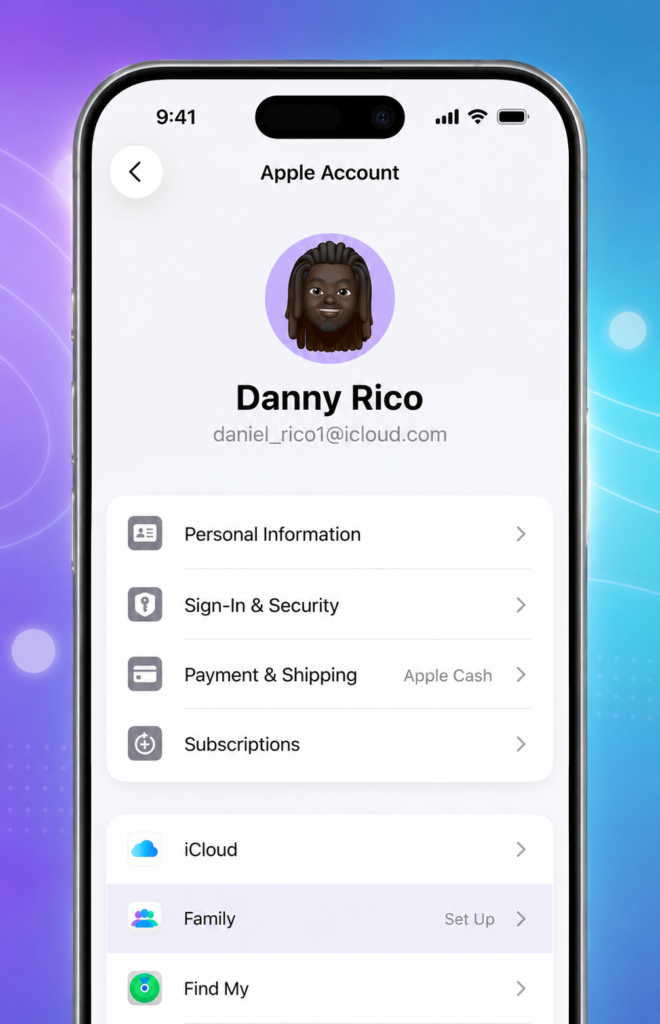
Family Sharing is the prerequisite for everything else. It is the system that links your Apple Account to your child’s, allowing you to manage their device remotely from your own iPhone.
Time required: 5 to 10 minutes iOS requirement: iOS 26 or later recommended
Step-by-Step Instructions
Step 1: Open the Settings app on your iPhone and tap your name at the very top of the screen.
Step 2: Tap Family Sharing. If you have never set this up before, tap Set Up Your Family.
Step 3: Tap Add Member. You will see two options: Invite Someone or Create Child Account.
Step 4: If your child already has an Apple Account, tap Invite Someone and follow the prompts. If they do not have one, tap Create Child Account. Apple requires a parent or guardian to create accounts for children under 13, which prevents kids from registering independently and bypassing controls.
Step 5: Follow the on-screen steps to complete the setup. You will need to agree to Apple’s Screen Time family terms.
Step 6: Once your child’s account is added, their name will appear under the Family section in your Screen Time settings.
You can also begin setup directly through Apple’s Family Sharing invitation page.
Important: Make sure every device in your family group runs the latest iOS version before configuring controls. Apple specifies that settings sync correctly only when all devices are on the same or compatible software versions.
Tutorial 2: How to Enable Content and Privacy Restrictions
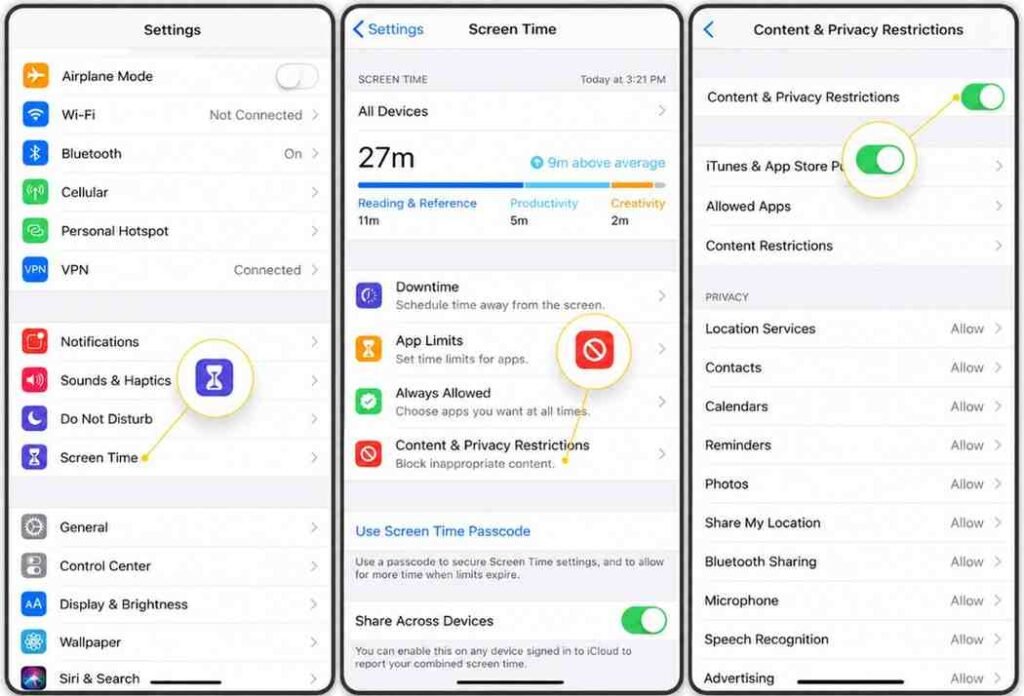
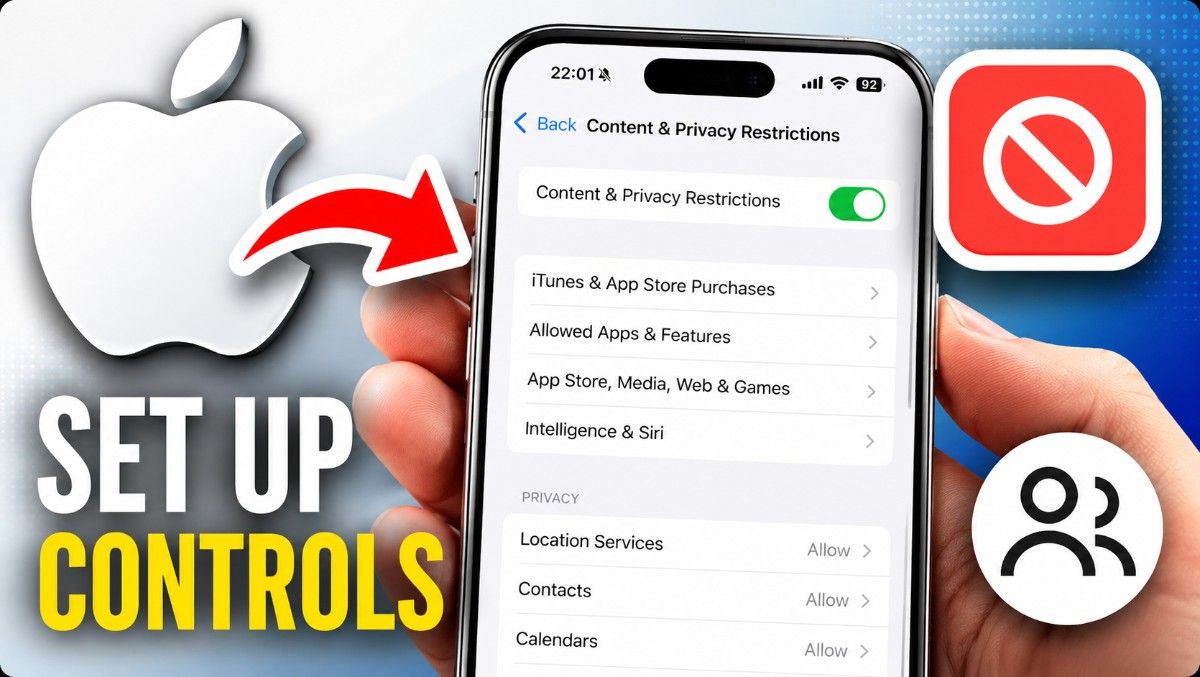
Content and Privacy Restrictions is the master control panel. Until you turn this on, most parental control features remain inactive.
Time required: 2 to 3 minutes
Step-by-Step Instructions
Step 1: Open Settings and tap Screen Time.
Step 2: Under the Family section, tap your child’s name.
Step 3: Tap Content and Privacy Restrictions.
Step 4: If prompted, enter your Screen Time passcode. This is the four-digit or six-digit code that prevents your child from changing the settings themselves.
Step 5: Toggle Content and Privacy Restrictions to on. The switch turns green.
Setting a Screen Time Passcode
If you have not set a Screen Time passcode yet, go back to the main Screen Time screen and tap Use Screen Time Passcode. Choose a number your child does not know and will not guess. Do not use your phone’s regular unlock PIN.
Critical note: If you forget your Screen Time passcode, recovery requires signing into your Apple Account and resetting it through Apple’s account recovery process. Write it down somewhere secure.
If you ever toggle Content and Privacy Restrictions off, all the settings inside it pause rather than reset. They return exactly as you left them when you turn it back on.
Tutorial 3: How to Block App Store Purchases and Downloads
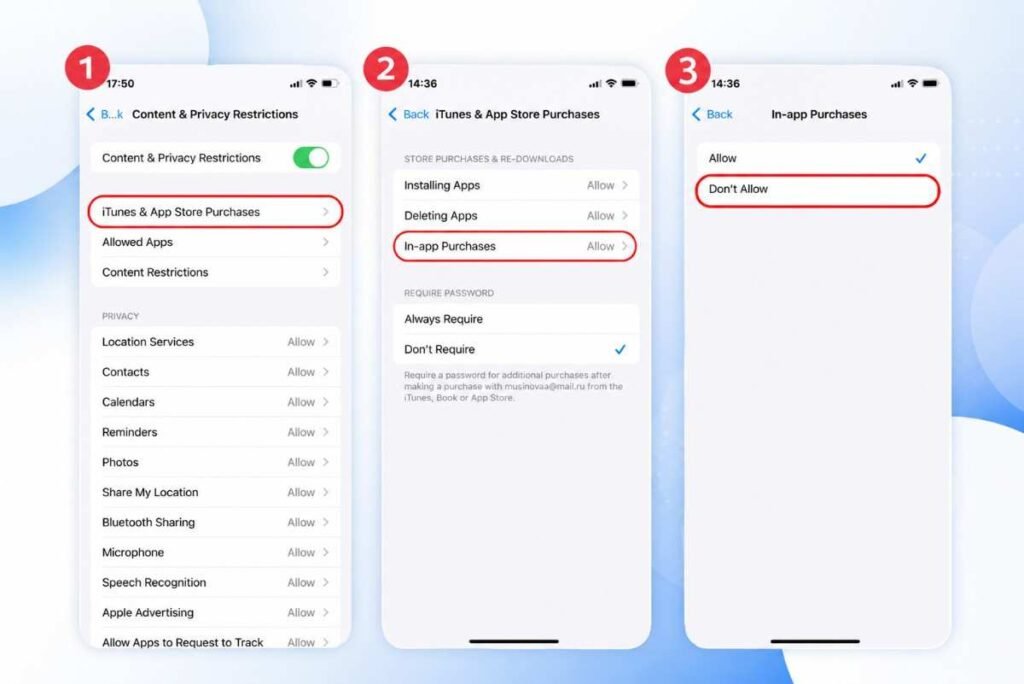
Unauthorized in-app purchases are one of the most common and costly surprises for parents. Children have unknowingly spent hundreds or even thousands of dollars inside games and apps. This tutorial eliminates that risk entirely.
Time required: 3 minutes
Step-by-Step Instructions
Step 1: Open Settings and tap Screen Time.
Step 2: Tap your child’s name under Family.
Step 3: Tap Content and Privacy Restrictions, enter your passcode if prompted.
Step 4: Tap iTunes and App Store Purchases.
Step 5: You will see three options: Installing Apps, Deleting Apps, and In-App Purchases. Set all three to Don’t Allow if you want complete control, or configure each individually based on your child’s age and maturity.
Step 6: Scroll down to Require Password. Set this to Always Require. This means even if a purchase slips through, it cannot complete without your Apple Account password.
iOS 26 Exception Requests
In iOS 26, Apple introduced a cleaner exception request system. When your child hits a purchase restriction, they can send you a real-time request through the Messages app. You receive a notification and can approve or deny it with one tap from your own device. This keeps you in control while letting your child participate in the process, which is especially useful for teenagers who can demonstrate responsible use over time.
For parents in regions where alternative app distribution is available, Apple provides additional guidance on managing app installation preferences.
Tutorial 4: How to Filter Web Content on iPhone
Safari is the default browser on every iPhone. Without content filtering active, it provides unrestricted access to the entire internet. This tutorial sets up layered web protection appropriate for any age.
Time required: 3 to 5 minutes
Step-by-Step Instructions
Step 1: Open Settings and tap Screen Time.
Step 2: Tap your child’s name under Family.
Step 3: Tap Content and Privacy Restrictions, then tap App Store, Media, Web, and Games.
Step 4: Tap Web Content.
Step 5: Choose one of three levels:
- Unrestricted Access: No filtering. Not recommended for children under 16.
- Limit Adult Websites: Apple’s automated system blocks a broad category of adult and harmful content while allowing general browsing. This is the recommended setting for most children aged 10 and up.
- Allowed Websites Only: Locks the browser to a pre-approved list of sites you specify. Best for children under 10 or for very restricted use cases.
Step 6: If you choose Limit Adult Websites, scroll down to add specific sites to Always Allow (sites you want to guarantee access to) or Never Allow (sites you want permanently blocked regardless of Apple’s automated filter).
Step 7: If you choose Allowed Websites Only, tap Add Website under the Always Allow section and enter each site you want your child to access.
For country-specific web safety advice beyond Apple’s built-in tools, Internet Matters provides free guides tailored to children at every age.
Tutorial 5: How to Set App Limits and Downtime Schedules
App Limits and Downtime are the two scheduling tools inside Screen Time. App Limits cap how long your child spends in specific app categories per day. Downtime blocks almost everything on a set schedule, like during school hours or after bedtime.
Time required: 5 minutes
Setting App Limits
Step 1: Open Settings and tap Screen Time.
Step 2: Tap your child’s name under Family.
Step 3: Tap App Limits, then tap Add Limit.
Step 4: Browse the app categories. You can set limits by entire categories like Social Networking, Games, or Entertainment, or tap into a category to set limits on specific apps.
Step 5: Set the daily time allowance. You can set the same limit every day or customize by day of the week, which is useful for allowing more screen time on weekends.
Step 6: Tap Add to save.
When the limit is reached, the app icon goes grey and displays a small hourglass. Your child can request more time, which sends a notification to you for approval.
Setting Downtime
Step 1: In Screen Time, tap Downtime.
Step 2: Toggle Downtime on.
Step 3: Choose either Every Day or Customize Days to set different schedules for weekdays and weekends.
Step 4: Set the start and end times. A common setting for school-age children is 9 PM to 7 AM on weekdays.
Step 5: During Downtime, only apps you specifically mark as Always Allowed remain accessible. These typically include Phone, Messages, and any educational apps you want to permit. To set Always Allowed apps, go back to Screen Time and tap Always Allowed.
Research published by the National Sleep Foundation consistently links screen use within 60 to 90 minutes of bedtime with measurably delayed sleep onset in children and teenagers, making Downtime one of the most evidence-backed tools available.
Tutorial 6: How to Manage Communication Limits and Communication Safety
Who your child communicates with matters as much as what they watch. This tutorial covers both Communication Limits, which controls contact access, and Communication Safety, which detects inappropriate imagery before it reaches your child.
Time required: 5 minutes
Setting Communication Limits
Step 1: Open Settings and tap Screen Time.
Step 2: Tap your child’s name under Family.
Step 3: Tap Communication Limits.
Step 4: Under During Screen Time, set who your child can communicate with: Everyone, Contacts Only, or Specific Contacts. Contacts Only is the recommended starting point for children under 13.
Step 5: Under During Downtime, you can further restrict communication to only a small group, such as immediate family.
Enabling Communication Safety
Communication Safety is one of Apple’s most significant child protection features. It uses on-device machine learning to analyze images in Messages and other supported apps before they are sent or viewed. If sensitive imagery is detected, the image is blurred and the child is shown a warning and resources. Nothing is sent to Apple. All analysis happens on the device.
Step 1: In Screen Time, tap Communication Safety.
Step 2: Toggle on Check for Sensitive Photos.
This feature is available for children under 18 in Family Sharing groups. Apple expanded Communication Safety in iOS 26 to cover additional apps beyond Messages, including AirDrop received content and select third-party apps that have adopted the framework.
The NSPCC in the UK recommends enabling every available image-detection tool as a baseline protection measure, noting that unsolicited explicit imagery is one of the most common online safety incidents reported by children.
Tutorial 7: How to Restrict Game Center Features
Game Center is Apple’s gaming network. Without restrictions, it allows children to play with strangers, add unknown players as friends, voice chat, and share their gaming profile publicly. Each of these carries real safety implications.
Time required: 3 minutes
Step-by-Step Instructions
Step 1: Open Settings and tap Screen Time.
Step 2: Tap your child’s name under Family.
Step 3: Tap Content and Privacy Restrictions, enter your passcode.
Step 4: Tap App Store, Media, Web, and Games, then scroll down to Game Center.
Step 5: Review and configure each option:
- Multiplayer Games: Set to Allow with Friends Only or Don’t Allow for younger children. Allowing multiplayer with everyone exposes children to strangers in real time.
- Adding Friends: Set to Don’t Allow to prevent your child from connecting with unknown players.
- Connect with Friends: Controls whether your child’s Game Center friend list can be shared with third-party games. Set to Don’t Allow.
- Screen Recording: Prevents your child from recording gameplay footage that may capture sensitive content or conversations.
- Nearby Multiplayer: Allows gaming with people physically nearby using local network connection. Consider your child’s environment before allowing this.
- Private Messaging: Prevents voice chats and custom messages in game invitations. Turn this off for children under 13.
- Profile Privacy Changes: Locks your child’s profile settings so they cannot make their account more public than you have configured.
- Avatar and Nickname Changes: Prevents your child from changing how they appear to other players without your knowledge.
Tutorial 8: How to Restrict Siri and Apple Intelligence in iOS 26
Apple Intelligence, Apple’s on-device AI system introduced in iOS 18 and significantly expanded in iOS 26, gives Siri the ability to generate images, write text, summarize content, and search the web in new ways. These are powerful capabilities that require thoughtful configuration for younger users.
Time required: 2 minutes
Step-by-Step Instructions
Step 1: Open Settings and tap Screen Time.
Step 2: Tap your child’s name under Family.
Step 3: Tap Content and Privacy Restrictions, enter your passcode.
Step 4: Tap Intelligence and Siri.
Step 5: Configure each setting based on your child’s age:
- Image Creation: Disabling this prevents your child from generating AI images through Image Playground and Siri. Recommended off for children under 13.
- Writing Tools: Disables Apple Intelligence’s ability to generate and rewrite text across apps. Consider your child’s school use before restricting this.
- Intelligence Extensions: Controls AI integrations with third-party apps.
- Siri and Dictation: Turns off voice-to-text capabilities entirely if needed.
- Web Search Content: Prevents Siri from pulling live web results, which can surface unfiltered content.
- Explicit Language: Prevents Siri from using or recognizing explicit terms.
- Math Results: Controls whether Siri can perform and display mathematical computations.
For children aged 10 to 14 who use iPhones for schoolwork, consider leaving Writing Tools and Math Results enabled while restricting Image Creation and Web Search Content.
Tutorial 9: How to Lock Privacy Settings on Your Child’s iPhone
Privacy settings control which apps can access your child’s location, camera, microphone, contacts, and other sensitive hardware and data. Without locking these, a child can grant any app full access, or worse, disable location sharing so you cannot see where they are.
Time required: 5 minutes
Step-by-Step Instructions
Step 1: Open Settings and tap Screen Time.
Step 2: Tap your child’s name under Family.
Step 3: Tap Content and Privacy Restrictions, enter your passcode.
Step 4: Under the Privacy section, tap each category and set it to Don’t Allow Changes.
Key settings to lock:
- Location Services: Lock this to ensure Find My continues working and your child cannot disable location tracking.
- Share My Location: Keeps location sharing active in Messages and Find My. This is your most important safety tool for older children who go out independently.
- Contacts: Prevents apps from accessing your child’s contacts list without your knowledge.
- Camera: Prevents apps from silently requesting camera access.
- Microphone: Prevents apps from requesting microphone access, which has significant privacy implications.
- Photos: Prevents apps from accessing your child’s photo library.
- Bluetooth Sharing: Prevents unknown devices from connecting.
- Apple Advertising: Locks advertising preferences.
- Allow Apps to Request to Track: Prevents apps from asking to track activity across other apps and websites.
Step 5: Under Allow Changes To, also review these device-level settings:
- Set Passcode and Face ID to Don’t Allow so your child cannot change the device unlock method.
- Set Accounts to Don’t Allow to prevent them from adding or removing email and social accounts independently.
- Set Cellular Data to Don’t Allow to prevent them from disabling mobile data restrictions.
- Consider setting Reduce Loud Sounds and Speaker Volume Limit to Don’t Allow to protect hearing. Pediatric audiologists note that children regularly exceed safe listening volumes without awareness.
Tutorial 10: How to Enable Screen Distance for Eye Health
Screen Distance is a health protection feature Apple built specifically for children. It uses the TrueDepth camera on Face ID-capable iPhones to measure how far the screen is from the user’s face. When it detects the device is being held too close, it pauses whatever the child is doing and displays a prompt asking them to move the screen further away before they can continue.
Time required: Under 1 minute
Step-by-Step Instructions
Step 1: Open Settings and tap Screen Time.
Step 2: Scroll down and tap Screen Distance.
Step 3: Toggle Screen Distance on.
The recommended minimum viewing distance is approximately 30 centimeters, or about 12 inches. The American Academy of Ophthalmology notes that the significant global increase in childhood myopia over the past two decades is closely linked to near-range screen and reading habits. Turning on Screen Distance is a simple, passive intervention with real long-term benefit.
Tutorial 11: How to Handle Your Child’s Exception Requests in iOS 26
In iOS 26, Apple refined the exception request system, making it easier for children to ask for permission adjustments and easier for parents to respond without interrupting their own day.
How Exception Requests Work
When your child hits a Screen Time limit or a Content and Privacy restriction, they can tap Request More Time or Ask for Permission. This sends you a notification through the Messages app on your device.
You can approve the request, deny it, or approve it for a specific amount of additional time, all without needing to touch your child’s device.
If You Are Not Receiving Requests
If your child’s requests are not reaching you, work through this checklist based on Apple’s official troubleshooting guidance:
- Update all devices. Both your iPhone and your child’s device must run the latest iOS version. Some request features only work on current software.
- Add your Apple Account email to iMessage. Go to Settings, tap Messages, then Send and Receive, and confirm your Apple Account email is listed.
- Use iMessage actively. Apple’s system requires that you have sent and received iMessages in the last 30 days for request notifications to route correctly.
- Turn on Message notifications. Go to Settings, tap Notifications, then Messages, and ensure notifications are enabled with alerts turned on.
- Sync your iCloud contacts. Go to Settings, tap your name, then iCloud, and confirm Contacts syncing is enabled.
Best Practices for iPhone Parental Controls in 2026
Configuring these settings once and never revisiting them is the most common mistake parents make. Here is what sustainable, effective parental control looks like in practice.
Review settings every three to six months. Children develop rapidly. The restrictions appropriate for a 9-year-old are not appropriate for a 13-year-old. Scheduled reviews let you loosen the right restrictions as trust is earned, rather than either being too restrictive or forgetting to adjust at all.
Update all devices before changing settings. Apple releases new parental control features with iOS updates. Some settings only work correctly when all Family Sharing devices run compatible software. Make software updates a household routine, not an afterthought.
Use Downtime non-negotiably for sleep. The research consensus from the National Sleep Foundation and the American Academy of Pediatrics is consistent: screens and sleep do not mix well for children. Setting Downtime to cover all sleep hours and the 30 minutes before bed is one of the highest-impact things you can do.
Enable Communication Safety without exception. There is no age group for which detecting inappropriate imagery before it reaches your child is a bad idea. Turn this on and leave it on.
Have the conversation. The NSPCC and multiple child psychology organizations emphasize that parental controls work best when children understand why they exist. Age-appropriate conversations about online safety, privacy, and the reasoning behind limits are more effective long-term than silent enforcement.
Lock your Screen Time passcode tightly. If your child knows or guesses your Screen Time passcode, every control you have set can be disabled in under two minutes. Treat the passcode with the same seriousness as your banking PIN.
Frequently Asked Questions: iPhone Parental Controls
Q: Can I set up parental controls on my child’s iPhone from my own phone?
Yes. Once Family Sharing is configured and your child’s Apple Account is linked to your family group, you can manage all Screen Time and parental control settings for your child’s device from your own iPhone through Settings and Screen Time. You do not need to physically have their device after the initial Family Sharing setup.
Q: What is the difference between Screen Time and Content and Privacy Restrictions?
Screen Time is the overarching system that includes usage monitoring, App Limits, Downtime, and Communication Safety. Content and Privacy Restrictions is a specific section within Screen Time that controls what content your child can access, what they can purchase, and which privacy settings they can change. You need both working together for complete parental control.
Q: Can my child bypass iPhone parental controls?
Apple’s built-in controls are significantly harder to bypass than third-party apps because they are embedded at the operating system level. The most common ways children attempt to bypass them include guessing the Screen Time passcode, using a different device, or resetting the phone. Locking the passcode tightly, enabling Family Sharing Activation Lock through Find My, and keeping devices within parental oversight removes most bypass routes.
Q: Do parental controls work on apps like YouTube, TikTok, and Instagram?
Apple’s Content and Privacy Restrictions can block these apps entirely based on their age ratings, or prevent them from being downloaded. However, the content inside each app is governed by that app’s own content settings, not Apple’s filters. YouTube has YouTube Kids as a separate safer app. TikTok has a Family Pairing feature. Instagram has a Supervision tool. Use Apple’s controls to gate access, then configure each platform’s own parental tools for content filtering within the app.
Q: At what age should I start loosening iPhone parental controls?
There is no universal answer, but a reasonable framework used by many parents is gradual trust expansion. Start with tight controls around age 8 to 10, review every six months, and loosen specific restrictions as your child demonstrates responsible use rather than loosening everything at once. The American Academy of Pediatrics recommends ongoing family discussion about digital habits at every age rather than a single age-based rule.
Q: Will my child know I can see their Screen Time data?
Yes. Apple is transparent about this. Screen Time data is visible to the parent through the Family section of Screen Time settings. Most child development experts recommend telling children that you can see this data rather than monitoring secretly, as transparency tends to produce better behavioral outcomes than surveillance alone.
Q: Does Screen Time work across iPhone and iPad?
Yes. When set up through Family Sharing, Screen Time settings and limits sync across all devices associated with your child’s Apple Account, including iPhone, iPad, and Mac.
Q: What happens if my child reaches their App Limit?
The app icon goes grey and displays a small hourglass symbol. The app becomes inaccessible until the limit resets at midnight or the parent approves an exception request. In iOS 26, your child can send you a timed exception request directly through Messages, and you can approve a specific additional time window from your device.
Q: Can I see which websites my child has visited?
Yes. Screen Time shows website visit history under the detailed usage breakdown for Safari. You can see which sites were visited and how much time was spent on each. This data is visible only to the parent account managing the child’s Screen Time.
Q: What is Communication Safety and is it private?
Communication Safety is Apple’s on-device feature that detects sensitive imagery in Messages and other supported apps before it is sent or viewed. Critically, all analysis happens entirely on the device itself. No images or data are sent to Apple or any third party. The feature simply blurs detected images and presents a warning to the child. It does not report anything to parents automatically, preserving a degree of privacy for the child while still providing a protective intervention.
Q: How do I reset a forgotten Screen Time passcode?
Go to Settings, tap Screen Time, scroll to the bottom, and tap Change Screen Time Passcode. Tap Forgot Passcode and sign in with your Apple Account credentials. Apple uses your Apple Account as the recovery method, which is why keeping your Apple Account secure is essential.
Q: Does Apple Intelligence respect parental controls in iOS 26?
Yes. In iOS 26, Apple Intelligence features including Image Creation, Writing Tools, and Siri web search are all controllable through the Intelligence and Siri section of Content and Privacy Restrictions. Disabling these features removes the corresponding capabilities from your child’s device entirely.
Final Thoughts
iPhone parental controls in 2026 are more capable, more nuanced, and more important than they have ever been. Apple has given parents a genuinely powerful toolkit, covering everything from purchase blocking and content filtering to AI image generation and real-time communication safety.
The investment of 30 to 45 minutes to configure everything in this guide pays dividends for years. It is not about control for its own sake. It is about giving your child the room to explore, learn, and grow on a device that has been calibrated to their age, maturity, and your family’s values.
For the complete official reference from Apple, visit Apple Support: Use Parental Controls to Manage Your Child’s iPhone or iPad.
Sources and References
- Apple Support: Parental Controls for iPhone and iPad
- Apple Family Sharing Setup
- American Psychological Association: Social Media and Adolescent Health
- American Academy of Ophthalmology: Myopia and Screen Use
- National Sleep Foundation: Screen Time and Children’s Sleep
- NSPCC: Online Safety for Children
- Internet Matters: Parental Controls Guide
- Apple Support: Alternative App Distribution
Read More:
Top 15 Best Upcoming Phone Launches in July 2026: Launch Date, Expected Price & Specifications