Getting a new phone is great. Realizing your Google Authenticator codes are still on the old one? Not so great.
Do not worry. This guide covers every scenario clearly — whether your old phone is sitting right next to you, or it is already lost, broken, or sold. Follow the steps that match your situation and you will be done in minutes.
Before You Start — Know Which Situation Applies to You
This is the most important table in this article. Find your situation first, then jump to the right section.
| Your Current Situation | Method to Use | Old Phone Needed? | Time Required |
|---|---|---|---|
| Old phone works + both phones in hand | Method 1 — Manual QR Transfer | ✅ Yes | 3–5 minutes |
| You were signed into Google inside the Authenticator app | Method 2 — Cloud Sync | ❌ No | Under 2 minutes |
| Switching Android → iPhone or iPhone → Android | Method 1 — Manual QR Transfer | ✅ Yes | 3–5 minutes |
| Old phone is lost, stolen, or broken | Method 3 — Account Recovery | ❌ N/A | 30–60 min per account |
| Never set up cloud sync, old phone unavailable | Method 3 — Account Recovery | ❌ N/A | 30–60 min per account |
What You Need Before You Begin
Gather these things before starting any transfer. Missing one can stop the process midway.
| What You Need | Why You Need It | Where to Find It |
|---|---|---|
| Your old phone (if available) | To export your existing 2FA codes | Wherever you last left it 😅 |
| Your new phone | The destination device | In your hands already |
| Google Authenticator app installed | The transfer tool itself | Google Play Store / Apple App Store |
| Your Google Account login | For cloud sync method | Your email and password |
| Backup codes (if old phone is gone) | Emergency account recovery | Email, notes app, printed sheet |
| Stable internet connection | For cloud sync and app download | Your WiFi or mobile data |
⚠️ Important: Do not factory reset or sell your old phone until you have fully confirmed that all codes are working correctly on the new one. This is the number one mistake people make.
A Quick Word on How Google Authenticator Works
Google Authenticator generates 6-digit codes every 30 seconds. These are called TOTP codes — Time-Based One-Time Passwords.
These codes are not stored on a server somewhere. They are generated from a small cryptographic secret — called a seed — that lives on your phone. That is why simply downloading the app on a new phone is not enough. The seed needs to move with it.
Here is how the two main storage options compare in 2026:
| Storage Type | How It Works | Risk If Phone Is Lost | Best For |
|---|---|---|---|
| On-device only (old default) | Seeds stored locally, no backup | All codes lost permanently | Privacy-focused users |
| Cloud sync via Google Account | Seeds backed up to your Google Account | Codes fully recoverable | Most everyday users |
Since April 2023, Google Authenticator supports cloud backup. According to the Google Security Blog, this update means users are better protected from lockout when switching or losing devices.
Method 1 — Manual Transfer via QR Code (Both Phones in Hand)
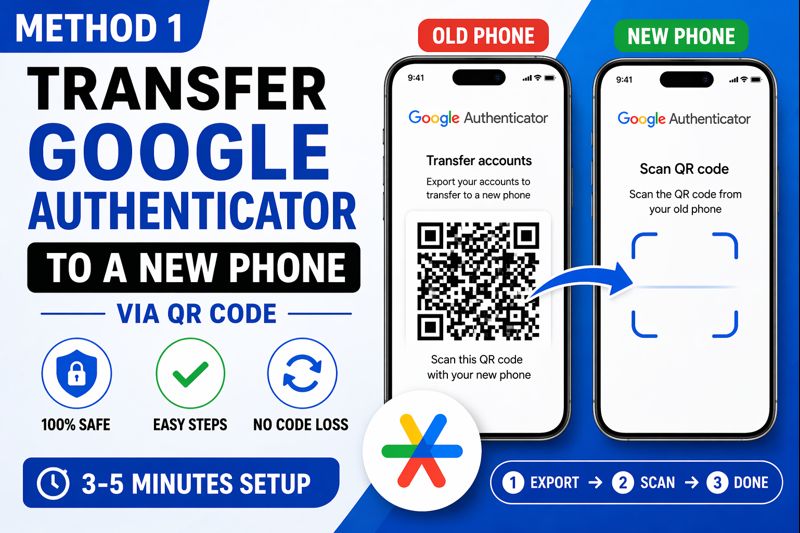
Best for: Users with a working old phone, cross-platform transfers, people who prefer not to use cloud sync.
This method does not require a Google Account or internet connection. Everything happens device-to-device through a QR code.
Part A — Steps on Your OLD Phone
Step 1 — Open Google Authenticator
Open the app on your old phone. Make sure you can see all your accounts listed on the main screen.
Step 2 — Tap the Profile Icon
Look for your profile picture or initial in the top-right corner of the screen. Tap it.
| What You See | What It Means |
|---|---|
| Your Google profile photo | You are signed into the app |
| A generic person icon | You are using the app without an account |
| No icon, just a menu (⋮) | You have an older version — update the app first |
Step 3 — Tap “Transfer Accounts”
A menu will appear. Tap Transfer accounts, then tap Export accounts.
Step 4 — Verify Your Identity
The app will ask you to confirm it is really you. This is normal and expected.
| Verification Method | When It Appears |
|---|---|
| Fingerprint scan | If biometric lock is enabled |
| PIN or pattern | If screen lock is set |
| Face unlock | On supported devices |
Step 5 — Select the Accounts to Transfer
A list of all accounts saved in Authenticator will appear. You can:
- Tap Select all to transfer every account at once
- Or tap individual accounts to pick specific ones
Then tap Next. A QR code will appear on your screen. Keep this screen open and visible.
⚠️ Do not screenshot this QR code. It contains the actual secret keys for your 2FA accounts. Anyone who scans it gets access. Keep it private.
Part B — Steps on Your NEW Phone
Step 6 — Install Google Authenticator
Download and install the app from the official store only.
| Device | Official Download Link |
|---|---|
| Android | Google Play Store — Google Authenticator |
| iPhone / iPad | Apple App Store — Google Authenticator |
⚠️ There are fake Authenticator apps in both stores. Always check the developer name. It must say Google LLC.
Step 7 — Open the App and Tap “Get Started”
When you open the app for the first time, you will see a welcome screen. Tap Get started.
Step 8 — Tap “Import Existing Accounts”
At the bottom of the screen you will see two options:
| Option | When to Choose It |
|---|---|
| Import existing accounts | You are transferring from another phone — choose this |
| Add a code | You are setting up a brand new 2FA account from scratch |
Tap Import existing accounts.
Step 9 — Tap “Scan QR Code”
Your new phone’s camera will open. Point it at the QR code displayed on your old phone.
The scan takes about 2–3 seconds. Once it reads the code, all selected accounts will appear instantly in the app.
Step 10 — Verify Every Account
This step is not optional. Do not skip it.
| Account | What to Test | How to Test |
|---|---|---|
| Google Account | Sign-in code | Go to myaccount.google.com → Security → 2-Step Verification |
| Any other account | Login code | Go to that service, sign out, and sign back in using the 2FA code |
| All codes | Timer sync | Watch the 30-second countdown — codes should refresh consistently |
If any code fails, check your phone’s date and time settings. TOTP codes break if your clock is even slightly out of sync. Go to Settings → Date and Time → Set Automatically → ON.
Method 2 — Cloud Sync Transfer (Fastest Option)
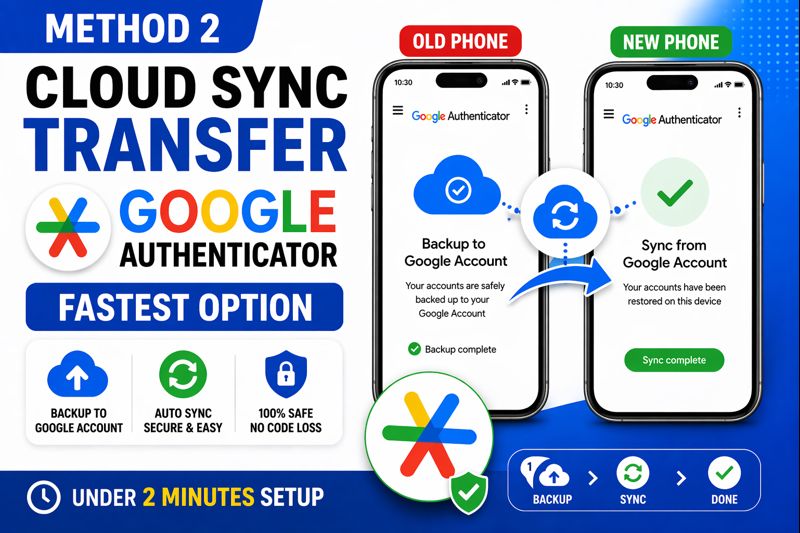
Best for: People who were already signed into their Google Account inside the Authenticator app on their old phone.
According to TechCrunch, if you are signed in to a Google Account within Google Authenticator, your codes are automatically backed up and restored on any new device you use.
Step 1 — Install Google Authenticator on the new phone
Same as above — download from the official Google Play Store or Apple App Store.
Step 2 — Open the app and tap “Get Started”
Step 3 — Tap “Sign in with Google”
You will be asked whether you want to sign in or use the app without an account. Choose Sign in with Google.
Step 4 — Enter the same Google Account used on your old phone
| ✅ Do This | ❌ Do Not Do This |
|---|---|
| Use the exact same email address | Use a different Google Account |
| Use the same account that was active in the Authenticator app | Create a fresh account thinking it will link |
| Double-check the account before confirming | Assume the default account is the right one |
Step 5 — Watch for the Cloud Icon
Once signed in, all your codes will restore automatically. You will see a small cloud icon at the top of the main screen confirming that sync is active and complete.
Step 6 — Test at least 2–3 accounts
Same as Method 1 — test a code before trusting everything is working.
How to Check If Cloud Sync Was Enabled on Your Old Phone
Not sure if you ever signed into your Google Account inside the app? Here is how to tell:
| Sign | What It Means |
|---|---|
| You see your Google profile photo in the top-right of the app | Cloud sync IS active — Method 2 will work |
| You see a generic person icon with “Sign in” | Cloud sync was never enabled — use Method 1 |
| You see a cloud icon with a checkmark in the app | Everything is backed up and synced |
| You see a cloud icon with an X or warning | Sync is enabled but something went wrong — check your Google Account |
Method 3 — Account Recovery (Old Phone Is Lost or Gone)
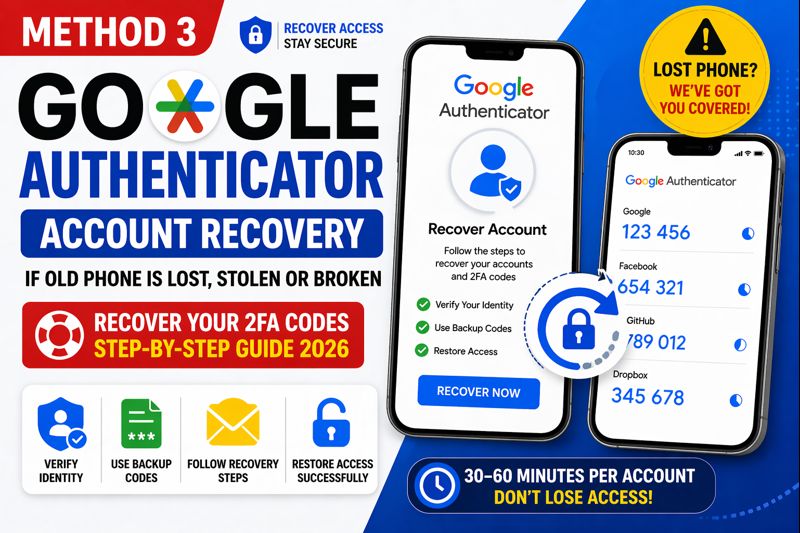
Best for: People whose old phone is lost, broken, wiped, or unavailable.
This is the hardest scenario. According to All Things Secured, if you have already lost access to your old phone and the 2FA codes, you will have to manually recover each account individually.
There is no universal fix. You recover each account one at a time.
Recovery Options by Priority
Work through these options in order for each account:
| Priority | Recovery Method | How It Works | Success Rate |
|---|---|---|---|
| 1st | Backup / recovery codes | 8–10 one-time codes given when you set up 2FA | Very high — if you saved them |
| 2nd | Trusted phone number | Service sends an SMS code to your backup number | High — if number still active |
| 3rd | Backup email address | Service sends a recovery link to your backup email | High — if email accessible |
| 4th | Identity verification | Submit ID to the service’s support team | Medium — takes 24–72 hours |
| 5th | Account recovery form | Fill out a form with account history details | Lower — depends on info provided |
Recovery Steps for Common Services
| Service | Where to Start Recovery | Notes |
|---|---|---|
| Google Account | accounts.google.com/signin/recovery | Can use backup email, phone, or recovery codes |
| facebook.com/login/identify | Supports trusted contacts, backup codes | |
| instagram.com/accounts/login | Use SMS, email, or support form | |
| Twitter / X | twitter.com/account/begin_password_reset | Email or phone recovery |
| GitHub | github.com/sessions/forgot_password | Backup codes or SMS |
| Dropbox | dropbox.com/forgot | Email recovery or support request |
Once you recover each account, immediately:
- Set up Google Authenticator fresh on your new phone for that account
- Save new backup codes somewhere safe
- Enable cloud sync in the Authenticator app so this never happens again
How to Enable Cloud Sync Right Now (Before Your Next Phone Switch)
If you are currently using Google Authenticator and have never turned on cloud sync, do this today. It takes 60 seconds.
| Step | Action | What You Will See |
|---|---|---|
| 1 | Update Authenticator to the latest version | App store will show “Update” if available |
| 2 | Open the app | Main screen with all your accounts |
| 3 | Tap the profile icon (top right) | A menu drops down |
| 4 | Tap “Sign in” | Google Account chooser appears |
| 5 | Select your Google Account | Confirmation screen appears |
| 6 | Tap “Continue” | Cloud icon appears at top of app — sync is active |
That is it. Your codes are now backed up.
Android vs iPhone — Full Comparison
| Feature | Android | iPhone (iOS) |
|---|---|---|
| Manual QR export/import | ✅ Supported | ✅ Supported |
| Cloud sync via Google Account | ✅ Supported | ✅ Supported |
| Transfer from Android to iPhone | ✅ Works | ✅ Works |
| Transfer from iPhone to Android | ✅ Works | ✅ Works |
| App Lock / biometric protection | ✅ Available | ✅ Available |
| Use without Google Account | ✅ Yes (no sync) | ✅ Yes (no sync) |
| Auto-restore on new device | ✅ If sync enabled | ✅ If sync enabled |
| Works offline (code generation) | ✅ Yes | ✅ Yes |
Is Cloud Sync Safe? The Honest Answer
This is a fair question and deserves a straight answer.
| Factor | Reality |
|---|---|
| Data in transit | Encrypted — Google uses industry-standard TLS |
| Data at rest | Encrypted on Google’s servers |
| End-to-end encryption | Partially available — Google is rolling this out |
| Risk if Google Account is compromised | ⚠️ Your 2FA codes could be exposed too |
| Risk compared to losing your phone | Much lower with sync enabled |
| Who can see your codes | Google has technical access — same as Gmail, Drive |
According to BleepingComputer, security researchers noted that while cloud sync adds convenience, a hacker who gains access to your Google Account could also access your 2FA codes.
Bottom line: For most people, cloud sync is the right choice. The risk of losing all your codes by dropping a phone is far more likely than a sophisticated Google Account breach. Just make sure your Google Account itself has a strong, unique password and is protected by a separate security key if possible.
Complete Pre-Switch Checklist
Do not switch phones without running through this list first.
| # | Task | Status |
|---|---|---|
| 1 | Open Authenticator on old phone — confirm all accounts are visible | ☐ |
| 2 | Check if cloud sync is active (look for cloud icon in app) | ☐ |
| 3 | If not active, sign into Google Account inside the app right now | ☐ |
| 4 | Locate and save backup codes for every important account | ☐ |
| 5 | Verify your Google Account recovery email and phone number are current | ☐ |
| 6 | Install Google Authenticator on new phone before switching | ☐ |
| 7 | Complete the transfer (Method 1 or 2) | ☐ |
| 8 | Test at least 3 accounts on the new phone | ☐ |
| 9 | Keep old phone active and un-wiped for 24–48 hours | ☐ |
| 10 | Only factory reset old phone after confirming everything works | ☐ |
Troubleshooting — When Something Goes Wrong
| Problem | Likely Cause | Fix |
|---|---|---|
| Codes are not working on new phone | Phone clock is out of sync | Settings → Date & Time → Set Automatically → ON |
| QR scan fails during export | Camera permissions not granted | Settings → Apps → Authenticator → Permissions → Camera → Allow |
| Cloud sync not restoring codes | Wrong Google Account used | Sign out of app, sign back in with the correct account |
| Some accounts missing after transfer | Not all accounts were selected during export | Go back to old phone, export again and select missing accounts |
| App says “No accounts” after sign-in | Cloud sync was never enabled on old phone | Use Method 1 (QR export) while old phone is still accessible |
| Codes regenerate but login fails | 2FA was reset by the service at some point | Contact that service’s support to re-verify your 2FA setup |
| App not available in region | Download region restriction | Use a VPN briefly to access the correct regional app store |
Frequently Asked Questions
Does Google Authenticator automatically transfer to a new phone?
Only if you were signed into your Google Account inside the Authenticator app on the old device. If cloud sync was active, install the app on your new phone, sign in with the same account, and all codes restore automatically. If you never enabled cloud sync, you need to use the manual QR export method — which requires your old phone to be working.
Can I run Google Authenticator on two phones at the same time?
Yes. With cloud sync enabled, the same codes appear on every device signed into the same Google Account. You can also set up the same 2FA account on multiple phones by scanning the same setup QR code from each phone simultaneously when initially enabling 2FA on a service.
What if I factory reset my old phone before transferring?
If cloud sync was not enabled, those codes are gone permanently from that device. You will need to recover each account individually using backup codes or each service’s own account recovery process. This is the most common and painful mistake people make when switching phones.
Is Google Authenticator safer than getting codes by SMS?
Yes — significantly safer. SMS-based 2FA can be hijacked through SIM-swap attacks, where a criminal convinces your mobile carrier to transfer your number to their SIM card. App-based 2FA generates codes locally on your device and does not travel through phone networks at all. Learn more at NIST’s Digital Identity Guidelines.
Can I transfer Google Authenticator from Android to iPhone?
Yes, without any issue. Use Method 1 — the manual QR export. The QR code generated on an Android phone scans perfectly into the iPhone version of Google Authenticator, and the reverse works too.
What are the best alternatives to Google Authenticator in 2026?
| App | Platform | Standout Feature | Cloud Backup? |
|---|---|---|---|
| Authy | Android + iOS | Multi-device sync, beginner-friendly | ✅ Yes |
| Aegis Authenticator | Android only | Open source, fully local | ✅ Optional (manual export) |
| Raivo OTP | iOS only | Clean design, iCloud backup | ✅ Yes |
| Bitwarden | All platforms | Password manager + 2FA in one | ✅ Yes (premium) |
| 1Password | All platforms | Full password + 2FA management | ✅ Yes |
What if my codes are generating but not being accepted?
This is almost always a clock sync issue. TOTP codes are time-sensitive — they are valid for only 30 seconds. If your phone clock is even 60 seconds off, the codes will be rejected. Fix it by going to Settings → General Management → Date and Time → enable “Set Automatically” on Android. On iPhone, go to Settings → General → Date & Time → enable “Set Automatically.”
Do I need internet to use Google Authenticator?
No. The app generates codes entirely offline using the seed stored on your device. Internet is only needed when initially setting up the app, enabling cloud sync, or restoring codes from a cloud backup.
Sources
- Google Security Blog — Authenticator now supports Google Account synchronization
- TechCrunch — Google Authenticator can now sync 2FA codes to the cloud
- BleepingComputer — Google Authenticator now backs up your 2FA codes to the cloud
- All Things Secured — How to Migrate Google Authenticator to New Phone
- NIST SP 800-63B — Digital Identity Guidelines on Authentication
- Google Support — Transfer Google Authenticator to a new phone
Read More:
OpenAI Launches GPT-5.5 — AI That Plans, Acts & Gets Real Work Done (2026)