
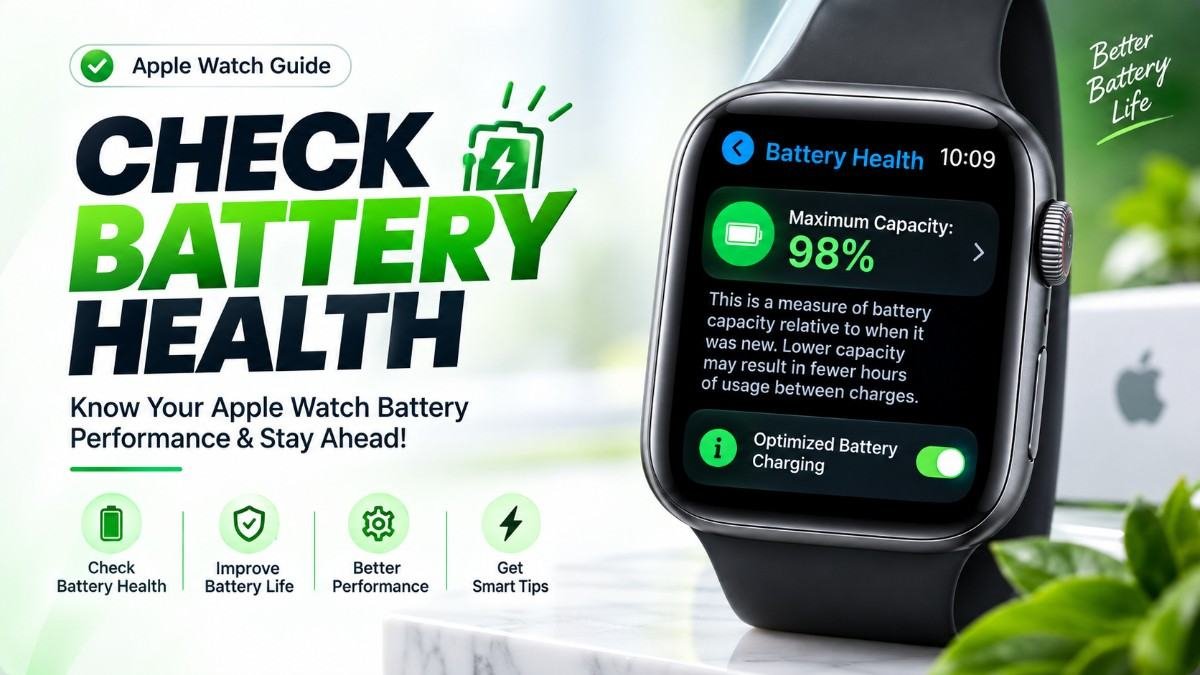
If your Apple Watch isn’t making it through the day the way it used to, checking Battery Health is the fastest way to find out whether normal battery aging is the cause. It takes less than a minute, requires no extra apps, and gives you a single number — Maximum Capacity — that tells you how your battery’s current capacity compares with when it was new.
That number matters, but it’s often misread. A watch sitting at 90% battery health isn’t necessarily running at “90% of its battery life.” Two Apple Watches with an identical health percentage can behave very differently depending on how each one is used — one loaded with Always-On Display, GPS workouts, and cellular, the other used mostly for notifications and time-telling.
This guide walks through exactly where to find Battery Health on your Apple Watch, what Maximum Capacity actually represents, how to read the percentage in practical terms, what causes the number to drop, and how to decide whether a declining battery is something to monitor or something to get serviced. Along the way, it separates official Apple guidance from practical interpretation, so you know which is which.
Quick Answer: How to Check Apple Watch Battery Health
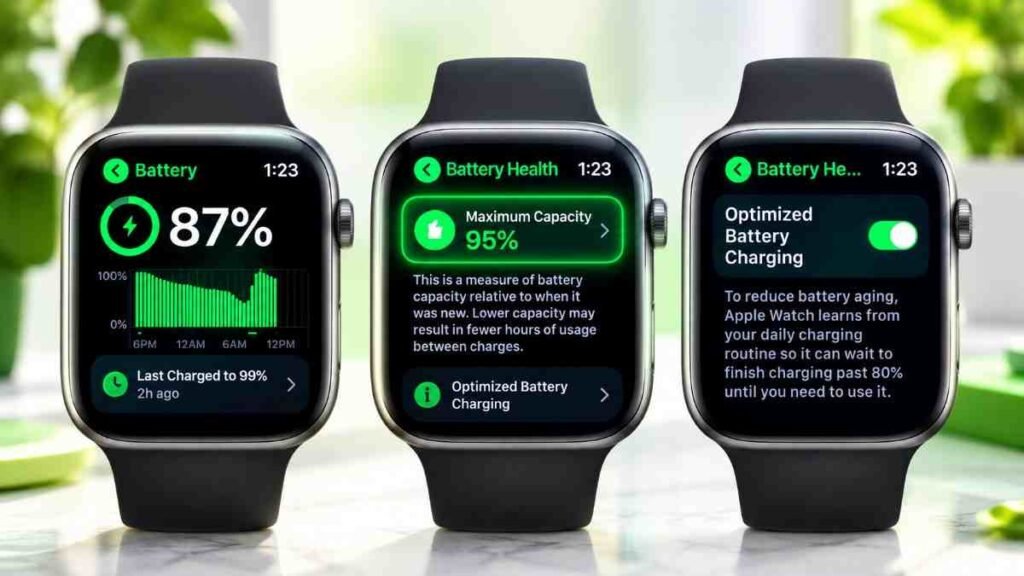
- On your Apple Watch, open the Settings app.
- Scroll down and tap Battery.
- Tap Battery Health.
- Scroll down to see Maximum Capacity — this percentage shows your battery’s current capacity relative to when it was new.
If Maximum Capacity has dropped significantly, Apple Watch will also flag it here and point you toward service options. There’s no separate app or hidden menu — this is the one and only place the metric lives.
How to Check Battery Health on Apple Watch
The steps are the same across every Apple Watch model that supports the feature, though the exact wording of a menu can shift slightly between watchOS versions.
Step 1: Open Settings
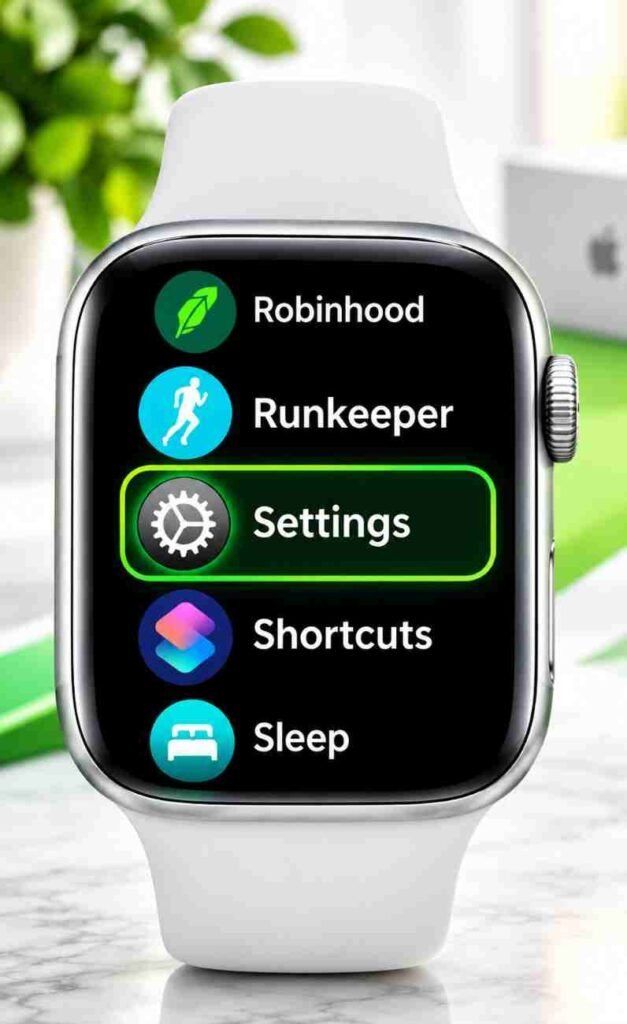
Press the Digital Crown to bring up your app grid, then tap the gray Settings gear icon. If your watch is arranged in list view instead of the grid, scroll down until you see Settings.
Step 2: Open Battery
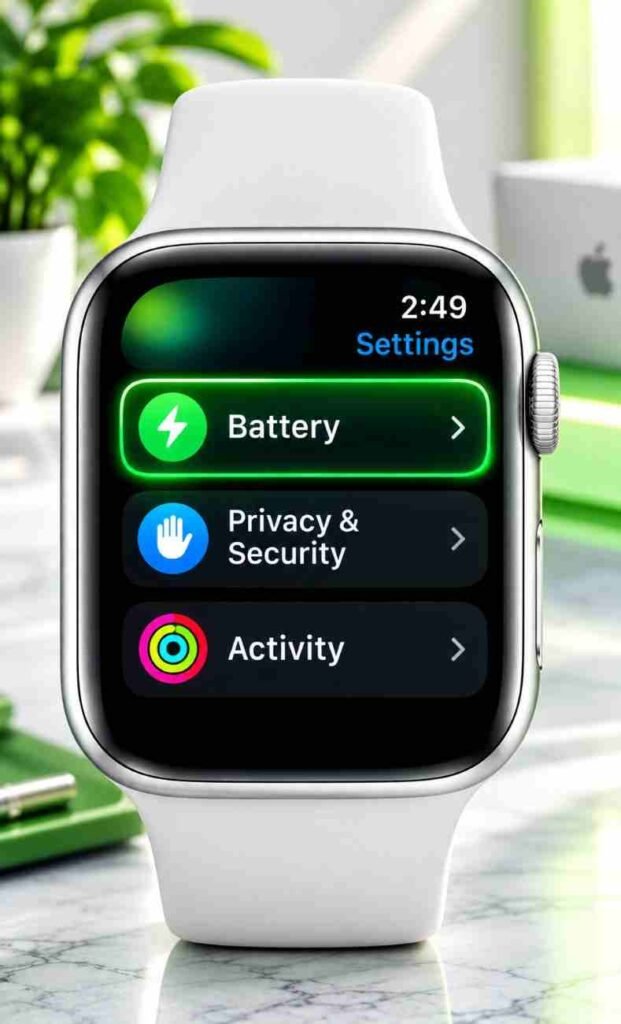
Inside Settings, scroll down to Battery. This screen shows your current charge level and a short graph of recent battery usage — this is not the same as battery health, so keep going.
Step 3: Open Battery Health
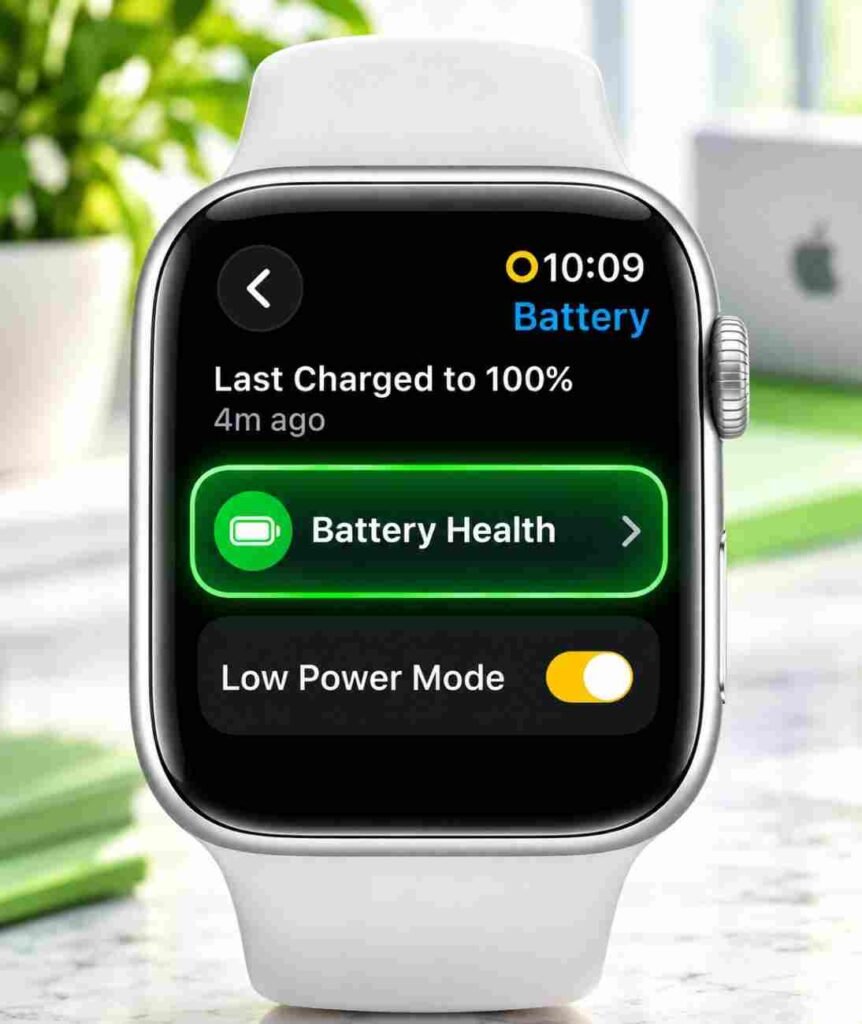
On some watchOS versions, you’ll need to swipe down past the usage graph to find Battery Health as a separate row; on others it appears directly in the Battery list. Tap it.
Step 4: Check Maximum Capacity
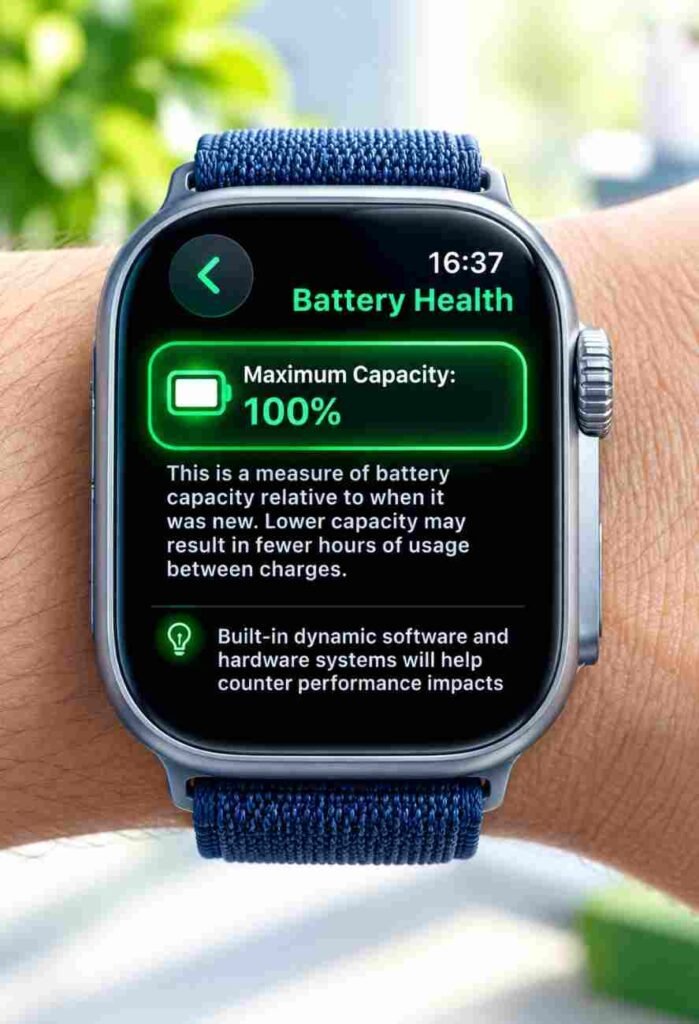
Scroll down on the Battery Health screen until you see Maximum Capacity, shown as a percentage. This is the number that matters. On the same screen, Apple Watch may also show whether the battery is capable of normal peak performance, and whether Optimized Battery Charging or Optimized Charge Limit is turned on.
What Does Maximum Capacity Mean on Apple Watch?
Maximum Capacity measures how much charge your battery can currently hold, compared with how much it could hold when the watch was brand new. Apple describes rechargeable batteries as consumable components that become less effective as they chemically age — this is simply how lithium-ion batteries work, not a defect specific to your device.
A 100% Maximum Capacity reading means the battery is holding roughly its original design capacity. A 90% readingmeans the battery can now hold about 90% of the charge it held when new — it will typically run out sooner between charges than it did on day one, though the difference may or may not be noticeable depending on how you use the watch.
A few things worth knowing:
- 100% doesn’t guarantee flawless real-world performance forever — a battery’s ability to deliver peak instantaneous power (affected by internal impedance) can shift slightly even near the top of the range.
- Decline is expected and gradual, not a sign something has gone wrong.
- Some models briefly show slightly less than 100% right out of the box, depending on how long the watch sat between manufacture and activation.
- Temperature and charging habits influence how quickly capacity declines over the life of the battery.
- Apple has noted that certain models recalibrate their capacity estimate to be more accurate after specific watchOS updates (for example, Series 4 and Series 5 after watchOS 9.0, and Series 6 44mm after watchOS 9.4), which can cause the displayed percentage to shift once, even without any real change in the battery itself.
Apple Watch Battery Health Percentage Explained
| Maximum Capacity | What It Generally Means | What You May Notice | What To Do |
|---|---|---|---|
| 95–100% | Very strong battery condition | Little to no difference from new | Continue normal use |
| 90–94% | Mild, expected aging | Usually negligible day-to-day impact | Continue normal use |
| 85–89% | Aging becoming measurable | Slightly shorter runtime possible for heavy users | Keep an eye on daily battery life |
| 80–84% | Noticeable aging | Shorter runtime may be more apparent, especially with GPS or cellular use | Monitor closely; consider service if runtime is a real problem |
| Below 80% | Significantly aged battery | Reduced runtime and, in some cases, unexpected shutdowns are more likely | Apple Watch may flag service options; worth checking with Apple Support if it’s affecting daily use |
These ranges are a practical way to interpret the number — they are not official thresholds published by Apple as strict diagnostic categories, aside from the fact that Apple Watch will alert you directly in the Battery Health screen when capacity has dropped enough to be worth a service conversation.
Is 100% Apple Watch Battery Health Good?
Yes — this is essentially a new or barely-used battery performing at its original design capacity.
Is 95% Apple Watch Battery Health Good?
Yes. A small, expected dip that most people will never notice in daily use.
Is 90% Apple Watch Battery Health Good?
Generally yes. Most owners at this level see little practical change. It does not mean your battery life is “10% worse” in a strict sense — real-world runtime depends heavily on usage.
Is 85% Apple Watch Battery Health Good?
Mostly fine for typical use, though heavy users — frequent GPS workouts, Always-On Display, cellular — may start to notice the watch running down a bit faster by evening.
Is 80% Apple Watch Battery Health Good?
This is the point Apple treats as a meaningful marker. It’s not automatically a problem, but it’s worth paying attention to your actual battery life rather than the percentage alone.
What Does Below 80% Battery Health Mean?
It means the battery has aged enough that reduced runtime — and, in some cases, more unexpected shutdowns under heavy load — becomes more likely. Apple Watch will typically flag this directly in the Battery Health screen and point you toward checking your service options. It’s still a decision based on how the watch is actually performing for you, not an automatic requirement to replace the battery.
Battery Health vs. Battery Life: What’s the Difference?
These two terms get mixed up constantly, and the distinction matters.
Battery Health is the condition of the battery itself — its Maximum Capacity compared with when it was new. It’s a hardware measurement, and outside of natural aging, it doesn’t change much day to day.
Battery Life is how long your watch actually lasts on a single charge, right now. It depends on Battery Health, but also on Always-On Display, GPS and cellular use, workout frequency, brightness, notifications, background app activity, and even ambient temperature.
| Battery Health | Battery Life | |
|---|---|---|
| What it measures | Battery’s capacity vs. original capacity | Actual hours between charges |
| Where to check it | Settings > Battery > Battery Health | Observed through daily use / Battery screen |
| Changes with | Age, charge cycles, heat, charging habits | Usage patterns, features enabled, health condition |
| Two watches, same number | Same underlying battery condition | Can differ significantly based on how each is used |
A watch at 90% Battery Health used lightly can easily out-last a watch at 97% Battery Health that’s tracking GPS workouts daily with Always-On Display and cellular running constantly. The percentage tells you about the battery — not about how your day will go.
How to Check Your Apple Watch Battery Percentage
This is a different, much simpler number: your current charge level.
- On the watch: Swipe up from the watch face to open Control Center, where the battery percentage is shown in the top corner.
- As a complication: Many watch faces support a battery complication that shows the current percentage directly on the face.
- On the charger: The percentage appears on-screen while the watch is charging.
Don’t confuse this with Battery Health:
Battery Percentage = how much charge is left right now. Maximum Capacity (Battery Health) = the condition of the battery itself, over its lifespan.
Can You Check Battery Health From iPhone?
Based on Apple’s own support documentation, no — Apple Watch Battery Health and Maximum Capacity are shown only on the watch itself, through Settings > Battery > Battery Health on the device. Apple’s official guides consistently point to checking this on the watch, and it isn’t listed as an available screen inside the Apple Watch app on iPhone. If you come across a guide claiming otherwise, treat it with caution — Apple has not published an iPhone-based path to this specific metric.
Does Battery Health Differ by Apple Watch Model?
The Battery Health feature itself has been part of watchOS for several generations, but availability and exact recalibration behavior can vary:
- It requires a reasonably recent Apple Watch model and watchOS version — very old Series models predating the feature’s introduction won’t have it.
- Apple Watch SE and Apple Watch Ultra models support Battery Health the same way mainline Series models do.
- Certain models recalibrate their capacity estimate after specific watchOS updates to improve accuracy (for example, Series 4/5 after watchOS 9.0, Series 6 44mm after watchOS 9.4, and later models after more recent watchOS releases) — this can cause a one-time shift in the displayed number that isn’t a real change in the battery.
- Menu wording and exact navigation (how many taps, whether you need to swipe past a graph) can vary slightly between watchOS versions.
As a rule: menu names and available options can vary depending on Apple Watch model and watchOS version, so if your screen doesn’t look identical to a screenshot from an older guide, that’s expected — the core path (Settings > Battery > Battery Health > Maximum Capacity) has stayed consistent.
Can You Check Apple Watch Battery Cycle Count?
A charge cycle is one full discharge-and-recharge sequence (which can happen across multiple partial charges). Apple does not currently expose a direct cycle-count number to everyday users through the Settings app on Apple Watch. The Battery Health screen shows Maximum Capacity and peak performance status, not a running cycle count.
If a third-party app claims to show your exact cycle count, treat that number skeptically — Apple Watch doesn’t officially surface this data to apps in a verified way, and any figure like that should be considered an estimate at best.
Why Apple Watch Battery Health Decreases
Lithium-ion batteries — the type used in every Apple Watch — chemically age with time and use. Contributing factors include:
- Charge cycles: Every full discharge-and-recharge cycle contributes slightly to wear.
- Heat: Elevated temperatures accelerate chemical aging more than almost any other factor. Apple states an ideal comfort zone of roughly 61–72°F (16–22°C).
- Time spent at very high or very low charge: Extended periods sitting at 100% (or very depleted) can add stress over the long run, which is part of why Optimized Battery Charging exists.
- Age: Even a battery that’s rarely used will slowly age chemically over time.
- Heavy usage patterns: Frequent GPS workouts, cellular use, and Always-On Display increase how hard the battery works, which can contribute to wear over time — though these factors affect daily battery life more directly than they affect long-term health.
It’s worth separating factors that primarily shape battery health (heat, age, charge cycles, extended time at high charge) from factors that primarily shape daily battery life (Always-On Display, GPS, cellular, brightness, notifications) — the second group drains today’s charge faster without necessarily accelerating long-term capacity loss the way heat does.
How to Keep Apple Watch Battery Healthy
None of these steps can reverse existing wear — degradation isn’t reversible — but they can slow how quickly capacity declines going forward:
- Avoid leaving the watch in direct sun, hot cars, or other high-heat situations.
- Keep Optimized Battery Charging (or Optimized Charge Limit, on supported models) turned on — it’s on by default.
- Keep watchOS updated, since Apple periodically ships battery-related refinements.
- Use Low Power Mode when you need to stretch a single charge.
- Turn off Wake Screen on Wrist Raise if you don’t need it, to reduce unnecessary display wake-ups.
- Keep Bluetooth enabled on your paired iPhone — a Bluetooth connection is more power-efficient for your watch than falling back to Wi-Fi or cellular.
- Use Wi-Fi over cellular when possible, since cellular draws more power.
- Consider a Bluetooth chest strap for long workouts, which can reduce sensor-related battery draw.
- During outdoor workouts, consider reduced GPS/heart-rate sampling settings if extending workout battery life matters more than sampling precision.
- Use genuine or properly rated charging accessories.
What Is Optimized Battery Charging on Apple Watch?
Optimized Battery Charging is a watchOS feature, enabled by default, that learns your typical charging routine. If you usually charge overnight, the watch may pause charging around 80% and finish the remaining charge shortly before you’d normally start wearing it again — reducing the amount of time the battery spends sitting at a full 100% charge, which is one of the conditions that contributes to long-term wear.
On some models (Apple Watch SE, Series 6, Series 7, and Series 8), this pairs with a related setting called Optimized Charge Limit; turning off Optimized Battery Charging on those models also turns off Optimized Charge Limit. Both can be found and adjusted in Settings > Battery > Battery Health, with the option to turn them off entirely or just “Until Tomorrow” if you need a full charge sooner than usual. Apple notes that turning off Optimized Charge Limit can increase wear and reduce battery lifespan, so it’s best left on unless you have a specific reason to disable it.
Does Low Power Mode Improve Apple Watch Battery Health?
Not directly. Low Power Mode extends how long your current charge lasts by temporarily reducing background activity and certain features — it’s a battery life tool, not a battery health tool. It doesn’t restore lost capacity, and there’s no evidence it meaningfully slows long-term chemical aging either. Think of it as a way to get through a long day, not a way to protect the battery’s underlying condition.
Apple Watch Battery Draining Fast? What to Check
If your watch is burning through charge faster than usual, work through this rough order:
- Restart the watch — a simple, quick first step that resolves a surprising number of software-related drain issues.
- Check for a pending watchOS update — after any update, battery behavior can temporarily shift while background tasks finish; Apple recommends waiting a few days before judging it.
- Review recent app activity — a newly installed or updated app can behave unexpectedly in the background.
- Check Always-On Display — turning it off, even temporarily, is one of the more noticeable ways to extend daily runtime.
- Look at GPS and workout usage — frequent or long GPS-tracked workouts are among the heaviest battery draws.
- Check cellular usage — cellular consumes more power than Bluetooth or Wi-Fi; consider Airplane Mode or Wi-Fi-only when cellular isn’t needed.
- Review notification volume — a flood of notifications means more frequent screen wake-ups.
- Check brightness — higher brightness levels use more power.
- Check Battery Health — if Maximum Capacity has dropped meaningfully, some of the drain may simply reflect an aging battery rather than a software issue.
- Consider temperature and charging behavior — recent exposure to heat or cold can temporarily affect readings and performance.
When Should You Replace Your Apple Watch Battery?
There’s no single official percentage at which Apple says “you must replace now.” The decision depends on several things together:
- What Maximum Capacity actually shows
- Whether your real-world runtime has become a genuine daily inconvenience
- Whether you’ve experienced unexpected shutdowns
- How much daily performance you actually need from the watch
- Whether Apple Watch itself has flagged a service recommendation on the Battery Health screen
- The age of your watch and whether continued use still makes sense compared with upgrading
If Apple Watch shows a message like “Battery Needs Service,” or you believe your battery needs replacing regardless of the exact percentage, Apple recommends contacting Apple Support directly.
Battery Service
Apple offers battery service both directly and through Apple Authorized Service Providers. Availability, turnaround time, and pricing can vary by model, region, and whether the watch is in or out of warranty or AppleCare coverage, so it’s worth checking current details directly through Apple’s support site or an authorized provider before making a decision, rather than relying on older published prices.
Common Apple Watch Battery Health Mistakes to Avoid
- Confusing current battery percentage (today’s charge) with battery health (long-term capacity).
- Assuming a 90% health reading means you’ll get exactly 90% of your original runtime.
- Fixating on small month-to-month percentage shifts, which can be normal noise.
- Trusting a third-party app’s claimed “cycle count” as an exact, verified figure.
- Assuming Low Power Mode repairs or meaningfully restores battery capacity.
- Ignoring repeated heat exposure, which does more long-term damage than most other habits.
- Deciding to replace a battery purely because it crossed an arbitrary percentage, without checking whether real-world performance is actually a problem.
- Using uncertified or poorly rated charging accessories.
Real-World Examples
Example 1: Apple Watch at 97%. Essentially performing like new. No action needed.
Example 2: Apple Watch at 90%. A light or moderate user likely won’t notice any real difference in daily use. A heavy GPS/cellular user might notice a very slightly shorter evening runtime.
Example 3: Apple Watch at 84%. Worth keeping an eye on. If runtime still comfortably covers your day, there’s no urgency; if it’s starting to feel tight, this is the point to start watching more closely.
Example 4: Apple Watch at 78%. Below the point Apple treats as a meaningful marker. If you’re also seeing shorter runtime or unexpected shutdowns, this is a reasonable point to look into service options.
These are illustrative examples of how the numbers tend to play out in practice — not official Apple diagnostic thresholds.
Troubleshooting Decision Tree
- Battery health looks normal, but the watch still drains fast → This points to software or usage settings. Work through the troubleshooting checklist above.
- Battery health is significantly reduced, and real-world runtime is also poor → This points toward the battery itself. Consider checking service options.
- Battery health looks normal, but you’re seeing unexpected shutdowns → This is unusual enough to be worth investigating as a possible software or hardware issue — consider contacting Apple Support.
Frequently Asked Questions
How do I check Apple Watch battery health? Open Settings on your watch, tap Battery, tap Battery Health, then scroll to Maximum Capacity.
Where is Battery Health on Apple Watch? Inside the Settings app, under Battery > Battery Health, on the watch itself.
What is a good battery health percentage for Apple Watch? Anything from roughly 90–100% is considered strong. 80–89% is still generally workable for most users; below 80% is the point Apple treats as worth paying closer attention to.
Is 90% battery health good for Apple Watch? Yes, for the vast majority of users this has little practical impact on daily use.
Is 85% battery health bad? No — it’s a normal stage of aging. It’s only worth acting on if your actual runtime has noticeably shortened.
Should I replace my Apple Watch battery at 80%? Not automatically. It depends on whether your real-world battery life and reliability are actually affected, and whether Apple Watch has flagged a service recommendation.
How long does an Apple Watch battery last? Typical daily use covers a full day on most models when new; the battery’s long-term capacity gradually declines over roughly a few years of regular use, depending heavily on charging habits and heat exposure.
Why is my Apple Watch battery draining so fast? Common causes include Always-On Display, GPS workouts, cellular use, high brightness, heavy notifications, a recent software update still finishing background tasks, or a genuinely aged battery. Work through each in turn.
Does Apple Watch battery health decrease over time? Yes — this is expected chemical aging in the lithium-ion battery, not a defect.
Can Apple Watch battery health increase? No. Once capacity is lost, it doesn’t come back through settings changes or software; only a physical battery replacement restores capacity.
Can I check Apple Watch battery health from my iPhone? No — based on Apple’s own documentation, this metric is shown only on the watch itself, under Settings > Battery > Battery Health.
Can I check Apple Watch battery cycle count? Not directly through Apple’s own interface. Apple doesn’t currently expose an exact cycle count to users in Settings.
Does Low Power Mode improve battery health? No — it extends how long your current charge lasts, but it doesn’t restore or protect long-term battery capacity in any confirmed way.
Does Optimized Battery Charging help Apple Watch? Yes — by reducing the time the battery spends sitting at 100% charge, it can help slow long-term wear. It’s on by default.
Does charging Apple Watch overnight damage the battery? Not meaningfully, as long as Optimized Battery Charging is left on, since it’s specifically designed to manage overnight charging patterns.
How often should I charge Apple Watch? Most people charge daily; there’s no strict rule, since Optimized Battery Charging is designed to handle regular daily charging patterns automatically.
Why does my Apple Watch get hot while charging? Some warmth during charging is normal. Charging in a hot environment, under direct sun, or with a case that traps heat can make it worse and may accelerate battery aging.
Does Always-On Display drain Apple Watch battery? Yes — it’s one of the more significant contributors to shorter daily battery life.
Does cellular drain Apple Watch battery faster? Yes — cellular uses more power than Bluetooth or Wi-Fi.
Does GPS drain Apple Watch battery? Yes — GPS tracking during workouts is one of the heavier battery draws on Apple Watch.
When should I replace an Apple Watch battery? When Maximum Capacity has dropped significantly and your actual runtime or reliability is being affected, or when Apple Watch itself recommends service in the Battery Health screen.
Quick Reference
| Question | Quick Answer |
|---|---|
| Where do I check Battery Health? | Settings > Battery > Battery Health, on the watch |
| What is Maximum Capacity? | Current battery capacity vs. original capacity |
| Is 90% bad? | No, generally fine for most users |
| Is 80% concerning? | Worth watching closely; not automatically urgent |
| Can Battery Health increase? | No, only a physical battery replacement restores capacity |
| Can I check it on iPhone? | No, only on the watch itself |
| Can I check cycle count? | Not directly through Apple’s interface |
| When should I consider service? | When real-world runtime/reliability is affected, or Apple Watch recommends it |
Final Takeaway
Battery Health lives in one place — Settings > Battery > Battery Health on your Apple Watch — and the number that matters is Maximum Capacity, your battery’s current capacity compared with when it was new. A gradual decline is normal lithium-ion aging, not a malfunction, and it’s a separate thing entirely from your current battery percentage or your day-to-day battery life, both of which depend heavily on how you actually use the watch.
Treat 90%+ as strong, 80–89% as normal aging worth keeping an eye on, and below 80% as the point to weigh your real-world experience — runtime, reliability, unexpected shutdowns — against whether battery service makes sense. When in doubt, or if Apple Watch itself flags a service recommendation, checking with Apple Support or an Apple Authorized Service Provider is the most reliable next step.
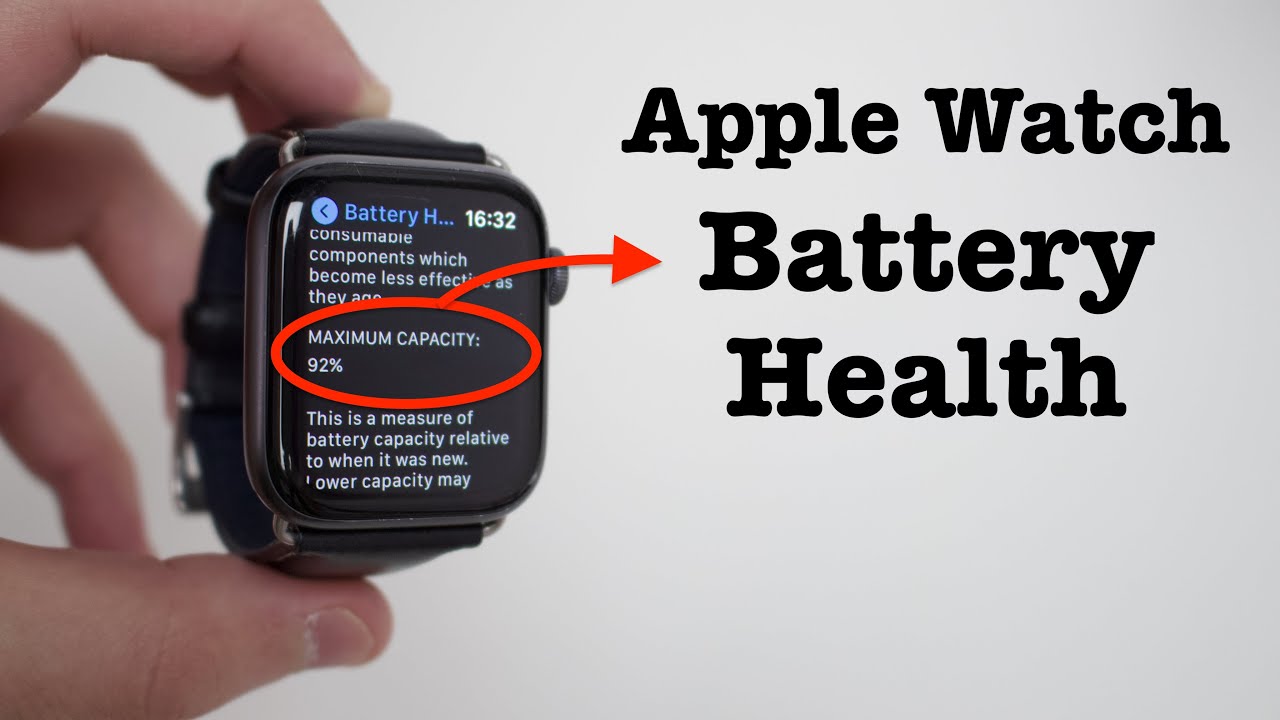
How to Check Apple Watch Battery Health
Want to check your Apple Watch battery health and maximum capacity? Watch this quick step-by-step tutorial to learn where to find Battery Health on your Apple Watch and understand your battery’s maximum capacity.
Read More: